Extra Content For Django
-
 Amrit Panta
- April 30, 2023, 7:59 p.m.
1.How to Setup ckeditor in django
In this part we will learn to integrate the code editor in django application
pip install django-ckeditor
# settings.py
INSTALLED_APPS = [
    ...
    'ckeditor',
]
STATIC_ROOT = BASE_DIR / 'static'
MEDIA_ROOT = BASE_DIR / 'media

python manage.py collectstatic

"""This command will copy the django-ckeditor static and media resources
into the directory given by #the STATIC_ROOT."""

CKEDITOR_UPLOAD_PATH = 'uploads/'
CKEDITOR_CONFIGS = {
    'default': {
        'toolbar': None,
        'toolbar': 'full',
        'height': 300,
        "width":"100%",
        'extraPlugins': ','.join([
            'codesnippet',
        ]),

    },
}

#urls.py
urlpatterns = [
    path('admin/', admin.site.urls),
    path('ckeditor/', include('ckeditor_uploader.urls')),
]


#if you need more custom then

# utils.py
def get_filename(filename, request):
    return filename.upper()

# settings.py
CKEDITOR_FILENAME_GENERATOR = 'utils.get_filename'
Then you have to used it on models.py file when ever needed
from ckeditor.fields import RichTextField
#if you need upload image then you must used RichTextUploadingField
from ckeditor_uploader.fields import RichTextUploadingField

body = RichTextUploadingField()
content = RichTextField()
2.Cron-job in django
In this tutorial we will learn how to integrate the cron-job in django
Before we go any further, we must understand the syntax in which a cron job is defined. Yes, a cron job has a specified format which can be understand by the cron utility. The main part of a cron is its timing syntax which defines the schedule at which the job has to be run periodically.
It consist of five parts order-wise i.e. starting from minute to defining week day.
- Minute (0 – 59)
- Hour (0 – 23)
- Day of the month(1 – 31)
- Month (1 – 12)
- Week day (0 – 6)
The most simplified syntax for a cron can be seen as
* * * * * [job]
For each field, we have used an asterisk(*) which implies all the possible numbers for a position. The above cron job is scheduled to run every minute.
2 * * * * [job]
The above timing definition implies that the job is scheduled to be run at 2 minute of every hour ie 00:02, 01:02, 02:02, 03:02 et cetera.
10 8 * * * [job]
The above syntax corresponds to the job schedule at 8:10 of every day
*/2 * * 3 * [job]
Now, this is something different. Here we have used the “/”(division) operator. You may notice I have divided the minute value by 2 i.e. I want the cron job to run at every 2 minute but I have as well defined the value of month as 3 which implies the above job is scheduled to be run at every 2nd minute of 3rd month for all hours and for all days.
Just like “/”, some other symbols are also used to make a cron job more specific. For e.g. “,”(comma) is used to define multiple values for the same field. Let’s see an example of this also
2,4,6 * * * * [job]
The above job will run three times every hour at 2nd, 4th and 6th minute.
Similarly “-“(dash) can be used to define the range of values for a field. For e.g.
0 6-8 * * * [job]
The above job will run once every hour between 6:00 am and 8:00 am every day.
SetUp Cronjob In Django
pip install django-crontab
#settings.py
INSTALLED_APPS = (
    'django_crontab',
    ...
)
#make th utlif file and define function to be run as app/cron.py
def my_scheduled_job():
  pass


#set crontab to be run in every 5 minutes
CRONJOBS = [
    ('*/5 * * * *', 'myapp.cron.my_scheduled_job')
]


#additional command
python manage.py crontab add
python manage.py crontab show
python manage.py crontab run 25e3e3978f8488cce32c30a0d3a12603
python manage.py crontab remove
read more: https://crontab.guru/ gutsytechster.wordpress.com pypi
3.Push Notification in django
In this tutorial we will lean about the push notification in django. For this follow the following process
1.Install django-fcm package using pip
pip install fcm-django
2.In settings.py do following settings
from firebase_admin import initialize_app
FIREBASE_APP = initialize_app()

os.environ["GOOGLE_APPLICATION_CREDENTIALS"] = os.path.join(
    BASE_DIR, "fcm-admin.json")

FCM_DJANGO_SETTINGS = {
    "APP_VERBOSE_NAME": "Installed Devices",
    "ONE_DEVICE_PER_USER": False,
    "FCM_SERVER_KEY": 'AAAAb9C_abw:APA91bHjlNiIE5xFZqTG0wy91kb8rF408Vb3WhPSDQjl9lV4uuN3Zt30HyXEHUu9zFs3zvcT2G9x0E0_NK4MJw5VWqkJzl5U_HAHJTrfUeizdG2XqDiwqymUxdJp3phefXBy9NvsfJTL',
    "DELETE_INACTIVE_DEVICES": True,
}
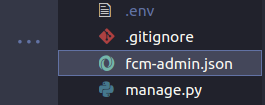
3. Note that , you have to set up the firebase fcm-admin.json file same for both app and the django project then you can easily send the push notification
4.You need to call the api to register the user in FCMDevice model so the user's device type and device registration_id is stored
#this api should be hit at first user start the app
from fcm_django.api.rest_framework import FCMDeviceAuthorizedViewSet
urlpatterns = [
    path('devices/', FCMDeviceAuthorizedViewSet.as_view({'post': 'create'}), name='create_fcm_device'),
    ]

"""
while this api is hit payload must be provided so the all information will store in table
example of payload:
{
"registration_id" :"(required - is FCM token)",
"name" :"(optional)",
"active": "(default: true)",
"user": "(optional)",
"device_id": "(optional - can be used to uniquely identify devices)",
"type":" (‘android’, ‘web’, ‘ios’)"
}
"""
Then user can send notification like
from fcm_django.models import FCMDevice
from firebase_admin.messaging import Message,Notification
def send_notification(title,body,user):
    device= FCMDevice.objects.filter(user=user)
    if device:
        device.send_message(Message(notification=Notification(title=title,body=body,image="")))
    return True
read more: fcm-django
4.Remove unuswed media file
In django we can remove the unused media file by using the package as follow,
pip install django-unused-media

# add package in settings.py file
INSTALLED_APP=[
"django-unused-media"
]

#run command to execute
python manage.py cleanup_unused_media
learn more:https://pypi.org/project/django-unused-media/
5.How to create auto complete in django-admin panel/ create slug auto
#models.py
from django.db import models
from django.urls import reverse
from django.template.defaultfilters import slugify
class Student(models.Model):
    name=models.CharField(max_length=200)
    age=models.IntegerField()
    address=models.CharField(max_length=100)
    slug=models.SlugField(null=False,unique=True)
    def save(self,*args,**kwargs):
        self.slug=slugify(self.name)
        super().save(*args,**kwargs)
    def get_absolute_url(self):
        return reverse("Student", kwargs={"slug": self.slug})

    def __str__(self):
        return self.name


#admin.py
from django.contrib import admin
from .models import Student
class StudentAdmin(admin.ModelAdmin):
    list_display=['id','name','age','address']
    prepopulated_fields={"slug":("name","address")}
admin.site.register(Student,StudentAdmin)
6.How To Access With Database through command in django
python manage.py dbshell
7. .env file in django
pip install django-environ

#then you can define the variable in .env file
import environ
env=environ.Env()
environ.Env.read_env()
Email_host=env("email_host")
8.Message framework in django:
# settings.py

INSTALLED_APPS=[
"djnago.contrib.messages",
]
from django.contrib.messages import constants as messages
MESSAGE_TAGS={
messages.ERROR:"danger",
#you can add as many as you want with syntax
# messages.label:"tag"
}

# views.py
from django.contrib import messages
messages.add_message(request,message.LABEL,"your message")
OR
messages.debug(request,"your messages")
# here debug is the tag name you mention in settings.py file


#.html
{% if messages %}
{% for message in messages %}
{% if message.tags %} class="alert-{{message.tags}}" {% endif%} {{message}}
{% endif %}
{% endif %}
9.Django Humanize
# settings.py
INSTALLED_APPS=[
'django.contrib.humanize'
]

#index.html
{% load humanize %}
{{record.naturalday| naturalday}}   # datefield so o/p as today,yesterday
{{record.naturaltime|naturaltime}}  #datetimefield so o/p as 10 hour ago
{{record.ordinal| ordinal}}         # it change 3 to 3rd
{{record.appnumber|appnumber}}      # 1000000 to 1.0 million
{{record.intcomma|intcomma}}        # 10000 to 10,000